Email automation: what it is, examples, and how automated email workflows run
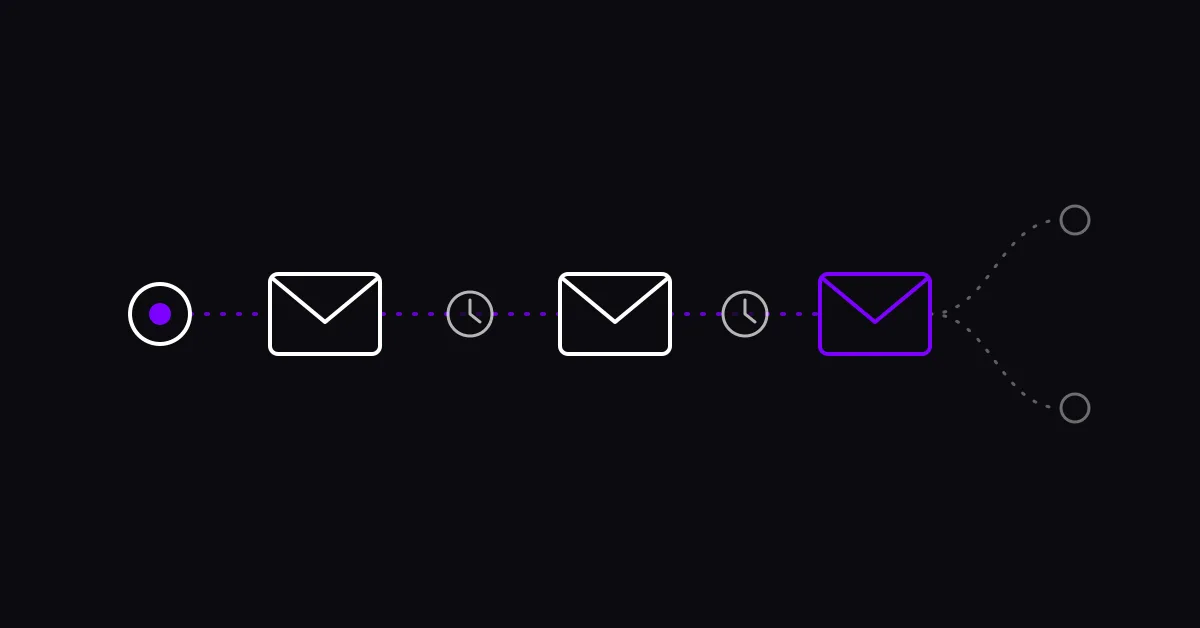
Email automation is sending emails that a program starts for you when something happens, instead of a person pressing send. A trigger, such as a sign-up, an order or a date, enrols one contact, and a workflow of steps sends emails, waits and branches for that person alone, at their own pace.
That one idea covers the welcome email that arrives a minute after sign-up, the reminder about a checkout left open, and the birthday note that turns up on the right morning every year. This post explains how an automated workflow is put together, walks through seven email automation examples, and says where automation is the wrong tool.
What is email automation?
So what is email automation, in practice? It is a set of rules you write once and a system that applies them to every person, one at a time. You decide the moment that starts a message and what follows it. The system watches for that moment, and when it happens for someone, it carries that person through the messages you planned.
Compare it with a campaign, which goes out once, to everyone in a list or segment, at a time you choose. A campaign is a broadcast. An automation is a conversation that begins separately for each person, at the point where they did something worth answering. A new subscriber on Monday and one on Thursday get the same first email, each on their own day.
The other thing automation replaces is a pile of scheduled scripts. A welcome series built as five cron jobs is five places to look when someone says they got the wrong message. An automation keeps the same logic in one workflow, and keeps a record of what each person went through. The automation glossary entry has the short definition.
How does an automated email workflow run?
Automated email workflows are built from the same three parts, whatever tool you use: a trigger, a set of steps, and runs.
The trigger
The trigger is the one entry point. It names the thing that starts a run: a contact being created, someone subscribing to a list, a contact joining a segment, an email being opened or clicked, an order in your store, or an event your own product sends, such as trial.started. When the trigger fires for a contact, that contact is enrolled.
The steps
Steps are what happens after enrolment, in order. In Rasket a step can send an email from a published template, send a text, wait, branch on a rule about the contact, update the contact’s fields, add them to a segment, or opt them in or out of a topic. A workflow can hold up to 150 steps, and a single wait lasts up to 30 days, either for a length of time or until a fixed moment.
The run
A run is one contact’s trip through one version of the workflow. It records each step it reached, when, and what happened, including a step that was skipped and why. A run waiting on a three-day delay holds nothing open; it is a time the run wakes up at. When you edit a live automation, Rasket saves a new version, and runs already in flight finish on the version they started on.
When your product starts the workflow, it sends one request when the moment happens. The event carries a small payload, which the emails can use, for example to name the plan the person chose:
POST https://api.rasket.com/events/send
Authorization: Bearer $RASKET_API_KEY
Content-Type: application/json

{
  "event": "trial.started",
  "email": "ada@example.com",
  "payload": { "plan": "team", "trial_days": 14 }
}
The event has to be declared once under Automations, Events, before an automation can start on it. Every enabled automation whose trigger names trial.started enrols Ada when this arrives.
What are some email automation examples?
These seven email automation examples cover most of what small teams and online stores build first. Each names its trigger, because the trigger is the decision that matters most.
| Automation | Trigger | What it sends |
|---|---|---|
| Welcome | Someone subscribes to your newsletter topic | A welcome straight away, then a second email a few days later with your best reading |
| Trial onboarding | Your product sends trial.started | Setup help on day one, then a branch: tips for people who activated, a nudge for those who did not |
| Abandoned checkout | A shopper starts a checkout in your store | A reminder an hour later, a second the next day, and a last one, stopping once they order |
| Post-purchase | An order is fulfilled | A thank-you, then a request for a review once the order has had time to arrive |
| Birthday or renewal | A date stored on the contact comes round | A note on the day, or a reminder a set number of days before a renewal |
| Follow-up on a click | A contact clicks a link in an email | A more detailed email about the thing they clicked |
| Email and text together | Any of the triggers above | An email first, then a short text to people who agreed to receive texts |
Online stores get a head start: Rasket ships six ready-made store flows (abandoned checkout, abandoned cart, browse abandonment, welcome with a discount, post-purchase thank-you and review, and win-back). Each is added switched off, so you read the emails before anything sends.
Dates as triggers
A date trigger starts a run when a date saved on a contact comes round, such as a birthday collected by a sign-up form or a renewal date brought in by an import. The date is a text property written as month and day, a full date, or a date and time. The trigger can fire on the day or up to 30 days before or after it, at a time of day you choose in a time zone you choose, no later than 11 pm. It repeats every year or fires once. Each contact enters once per year (or once per date), only subscribed contacts enter, and a day that has passed is never caught up, so nothing is sent late.
Texts inside a workflow
A Send SMS step texts the contact from the same workflow as the emails. It is a marketing text unless you mark it transactional. A contact with no phone number, who replied STOP, or who has not agreed to marketing texts skips the step, and the run goes on to the next one. Texts go to numbers in the United States and Canada, and your team needs an active sending number for that country, or the step is skipped too.
Two rules apply to marketing texts. One sent outside quiet hours (8 am to 9 pm in the person’s time zone at the widest, shorter where a state says so) waits for the morning, and the run waits with it. And a person gets at most one marketing text in any 16 hours; a second inside that window is skipped. The texts in automations page has the step’s fields.
Automation, campaign or schedule: which do you need?
The three get confused because they all send email without someone pressing a button at the time. The difference is who decides when.
- A campaign goes once, to a whole segment, at a time you pick. Use it for news, a sale, or a monthly newsletter.
- A scheduled email is a single message held until a later moment. Use it when you know the exact time, such as an event reminder for one person.
- An automation starts separately for each person when they do something and can run many steps over weeks. Use it when the right moment depends on the person.
A drip series is one common kind of automation: a fixed run of emails spaced by days. The drip campaign guide covers timing, examples and how a drip differs from a nurture sequence.
What should an automation not send?
Anything a person is owed whether or not they want your marketing. In Rasket every email an automation sends is a marketing email: it carries an unsubscribe link, and a contact who has unsubscribed is skipped. An order confirmation built as an automation would therefore never reach a customer who unsubscribed from your promotions.
Send receipts, password resets and security notices from your own code with the email API, and keep automations for messages a person can opt out of. The order confirmation email guide shows that split for a store.
Unsubscribed people can still be enrolled
For most triggers, an unsubscribed contact still enters the workflow; its emails are then skipped one by one, and the run log says so. Store triggers and date triggers enrol only subscribed contacts in the first place. Either way, nobody who unsubscribed gets an automation email.
What should you look for in email automation software?
Most email automation software can send a timed series. The differences show up when something goes wrong or the workflow grows. These are the questions worth asking on a trial account:
- Can your product start a workflow? Built-in triggers cover sign-ups and lists. For onboarding you need your own events, sent with one request.
- Can you see what happened to one person? A per-person run log turns “why did I get this?” from a guess into a lookup.
- What happens to people mid-workflow when you edit it? If edits rewrite live runs, people can get a step twice or skip one.
- Can it stop when the goal is reached? A reminder that keeps going after someone bought is the most common complaint about automated email.
- How are workflow runs priced? Some tools charge per contact in a workflow. In Rasket runs are not billed; the emails and texts they send are.
- Do automated emails follow the same rules as the rest? Suppressions, unsubscribes and sending limits should apply the same way, not through a second system.
How do I build an email automation in Rasket?
Under Automations, choose New automation. Pick a ready-made store flow or start blank, name it, and choose its trigger. Then add steps from the menu: Send email or Send SMS, a Delay, a Condition with an If true and an If false branch, or a step that updates the contact. Each Send email step uses a published template, so the copy that goes out is the copy you approved.
For a stopping rule, open the trigger and tick the events under Exit when: an order, or a custom event of your own such as trial.converted. The run ends as soon as one of them happens for the contact. Only your own events and store events can end a run.
Press Start to switch it on. For a custom event, Rasket then shows the request that sends it and offers Send a test, which you should point at a contact of your own. From then on, every run is listed with its steps, timings and any error, and kept for ninety days. The whole workflow can also be created with one request to the API; the automations reference lists every step type and its fields, and Automations shows the editor.
Two step types you may know from other tools are not available yet: waiting inside a run until an event happens (such as a click), and deleting a contact. A workflow naming either is refused rather than quietly ignored. To act on a click, start a separate automation on the click itself.
What are the most common email automation mistakes?
- No exit. A trial nudge that keeps arriving after someone paid reads as if nobody is paying attention. Give every sales-minded workflow an exit event, or a condition before each send.
- A loop. A workflow that triggers on a contact update and then updates the contact can start itself again. Trigger on the event, not on your own change.
- Receipts in a marketing workflow. They stop for anyone who unsubscribed. Send them from your code.
- Firing the event twice. Two sends of the same custom event start two runs. Send it once, at the moment it happens.
- Testing on real people. Start the automation, then send a test with a contact of your own, and read every email before the first real person enters.
- Too much at once. Build one workflow, watch its runs for a week, then add the next. Seven half-checked workflows send seven kinds of wrong email.
A good first automation is the welcome email. The welcome email guide covers what to put in it.
Published Updated 10 min readBy the Rasket team
Written for email marketers, small business owners and developers
Frequently asked questions
Is email automation the same as a drip campaign?
Not quite. A drip campaign is one kind of email automation: a fixed series of emails spaced by waits. Automation also covers workflows that branch on who the person is, update their details, add them to a segment or send a text, and ones that start on an order, a click or a date.
Do I need to write code to automate email?
No. Built-in triggers such as a new subscriber, a contact joining a segment, a date or an email click start a workflow without code, and the editor builds the steps. Code helps when the trigger is something only your product knows, such as a trial starting, which it sends as an event in one request.
Can an email automation send text messages too?
Yes. A Send SMS step texts the contact from the same workflow. A contact with no phone, without consent for marketing texts or who replied STOP skips it and the run goes on. Texts reach numbers in the United States and Canada, and marketing texts wait for quiet hours to end.
Can a workflow wait until someone clicks a link?
Not inside one run: waiting for an event is not available in this release, and a workflow that asks for it is refused rather than ignored. A click can start a separate automation instead, because email clicks and opens are among the built-in triggers.
How much does email automation cost in Rasket?
Runs are not billed. Every plan, Free included, has 250,000 runs a month as a fair-use limit, and a run past it is refused with the reason written on the run. The emails a workflow sends count against your plan's emails like any other, and texts are billed per message.
Can I see which emails one person received from a workflow?
Yes. Every run is one contact's trip through the workflow, listed with each step it reached, when, and what happened, including skipped steps and why. A send step records the email it created, so you can follow it into that message's delivery history. Runs are kept for ninety days.
What happens to people mid-workflow when I edit it?
Nothing changes for them. Saving writes a new version and points the automation at it, and every run already in flight finishes on the version it started on. Switching an automation off stops new people entering and leaves current runs alone; stopping it cancels them too.
Sources
- CAN-SPAM Act: A Compliance Guide for Business — Federal Trade Commission, read 2026-11-20
- RFC 8058: Signaling One-Click Functionality for List Email Headers — IETF, read 2026-11-20
- Automations API reference — Rasket, read 2026-11-20
- Texts in automations — Rasket, read 2026-11-20
Related
- Automations — Workflows that run per contact: start on a custom event or a segment change, wait, branch, and send. Every run pins a version and is inspectable.
- Drip campaign: what it is, examples and timing — What a drip campaign is, five email drip campaign examples with timings, how many emails to send, drip vs nurture, and how to stop a drip once someone converts.
- How to write a welcome email that gets read — Welcome email best practices: what to write, how to protect the signup form from bots, example emails and sequences, and how to measure without opens.
- Order confirmation email and abandoned cart flows — What an order confirmation email must contain, how to send it exactly once, and how to run abandoned cart emails that only reach subscribers who did not buy.
- Automation — An automation is a workflow that runs for one contact at a time. Something happens in your product, that contact enters at the trigger, and the graph carries…